Advanced POD Detection - Phase 2 Rollout
Product: Triumph NextGen Audit
Initiative: Advanced POD Detection (Phase 2)
Version: 1.0
Release Date: July 31, 2026
Please note: this functionality is NOT YET AVAILABLE to all NextGen Audit customers. Each customer will be informed by Triumph before this functionality goes live in their account.
Overview
Advanced POD Detection brings new transparency and control to how Proof of Delivery (POD) decisions get made in NextGen Audit. This first release gives your team a clear view into the checks behind every POD decision and a direct way to weigh in when you disagree.
What's New
Visibility of POD detection reasoning
Users can now see exactly how NextGen Audit evaluated whether each document met the criteria of a POD. The invoice details page displays a clear breakdown of which checks passed, failed, or were skipped, regardless of whether the POD passed or failed overall.
- Transparent POD checks: Full visibility into which references were evaluated, including references matched beyond your configured labels. We surface our checks for signatures, OS&D, carrier rates, and reference numbers.
- Drag and Drop Reference Numbers: Users can easily drag and drop from the document directly into the reference field when correcting a missing or incorrect match.
- Optional In-App Feedback: We've included a structured workflow allowing users to indicate the correct reference or flag a missing reference, replacing the need to go through manual support channels.
Editable account-level POD settings:
Users with Settings access can now view what defines a POD for their account. For this release, the settings page displays the current configuration: signature required and no damages required.
To learn more about Advanced POD Detection, reach out to your customer success manager anytime.
Automation Insights added to Insights Dashboard
Product: Triumph NextGen Audit, Legacy Audit
Initiative: Increase No-Touch Invoice Processing
Version: 1.0
Release Date: August 21, 2026
Overview
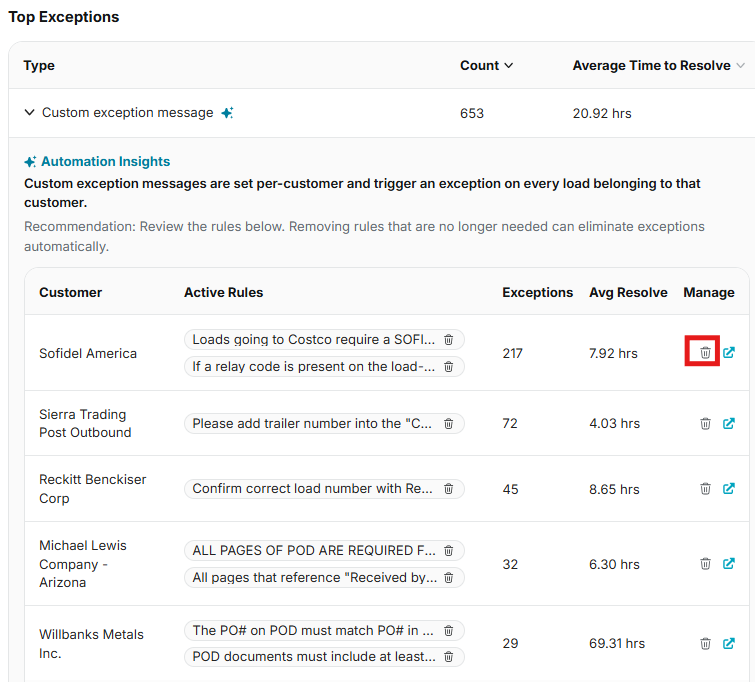
Automation Insights is a new section inside the Insights Dashboard that shows which custom exception message rules are generating exceptions in your operation — grouped by customer or account, with the exception count and average time to resolve alongside each group. When you find a rule your team no longer needs, anyone with Settings access can remove it directly from the dashboard.
Custom exception messages are set per customer and trigger an exception on every load belonging to that customer. That is why a single rule nobody has looked at since onboarding can account for a large share of a month's exception volume.
Until now, tracing that volume back to the rules behind it meant a downloaded report and several screens, or a request to your Customer Success Manager. That work is now self-serve, in the dashboard you already use.
What's new
Visibility of the rules creating more exceptions
Inside Top Exceptions, expand Custom exception message to open Automation Insights. Your active rules are listed by customer or account, and each group shows two figures: the number of exceptions generated over the period shown, and the average time your team spent resolving each one.
Automation Insights compiles the numbers behind your top exceptions and how to resolve that setting, but your team remains in control.
Self-serve rule removal
Users with Settings access can delete a custom exception message rule directly from the Insights Dashboard, without leaving the page. A confirmation step precedes any removal, the rule leaves the list immediately, and every removal is written to your audit trail.
Please note: viewing Automation Insights requires Insights Dashboard access. Removing a rule requires Settings access. Users without Settings access will see the rules and their impact, but not the removal option.
Direct navigation to settings
Each row links directly to the relevant settings page, customer-level or account-level depending on where the rule lives, so a change that isn't a removal is one click away as well.
Note: “Invoice Reminder Exception” is now “Custom Exception Message”
This label has been updated across Insights, the Audit queues, and Account Settings. The functionality is unchanged.
Key details
Availability
- Automation Insights is available to all NextGen Audit customers with Insights Dashboard access.
- There is nothing to purchase, install, or enable — it appears automatically inside Top Exceptions.
- Wave 1 covers custom exception message rules. Other exception types are not included in this release.
Permissions
- Insights Dashboard access — view the rules, exception counts, and average time to resolve.
- Settings access — remove a rule and follow through to its settings page.
- Every removal is recorded in the audit trail.
After a rule is removed
- The rule leaves the Automation Insights list immediately and stops generating new exceptions.
- Exceptions already in your queue are not affected — they remain and still need to be worked.
- Removal is permanent from the Insights Dashboard. To reinstate the behavior, recreate the rule in Settings, or contact Support and reference the audit trail entry.
What's next
Wave 1 covers custom exception message rules. We are expanding Automation Insights to additional exception types in future releases, prioritized by what customers are spending the most manual effort on.
If there is an exception type you would like to see covered, tell your Customer Success Manager — that feedback is going directly into the sequencing.
Was this article helpful?
That’s Great!
Thank you for your feedback
Sorry! We couldn't be helpful
Thank you for your feedback
Feedback sent
We appreciate your effort and will try to fix the article