Triumph Audit – Q2 2026 Product Releases
TABLE OF CONTENTS
June 2026 Releases
1. Per-Relationship Auto-processing Rules
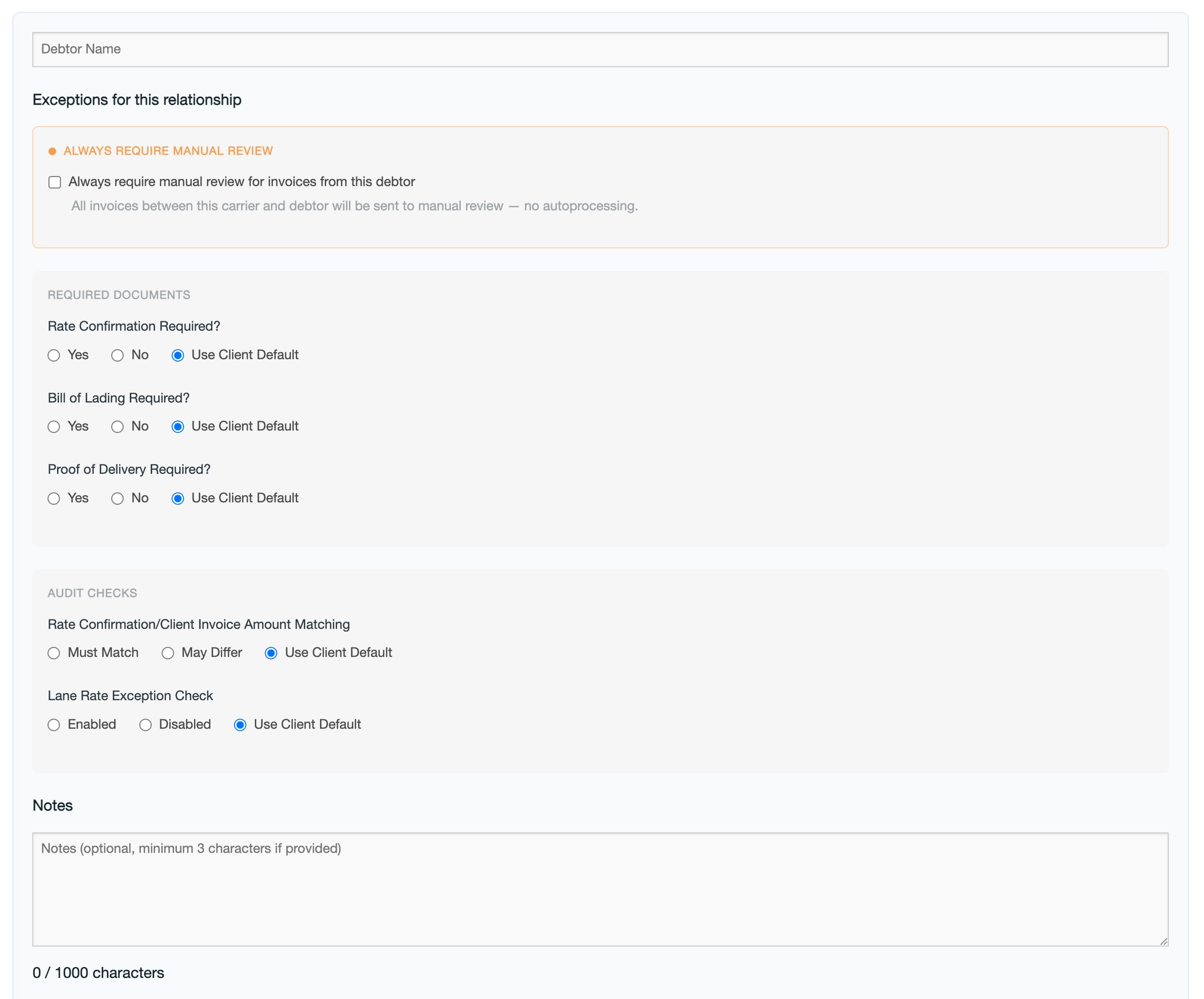
What it does
You can now set auto-processing rules for specific clients, or for specific client/debtor pairs, instead of relying on a single account-wide setting.
Rules can be set at two levels:
- Client-level — applies to all debtors for that client
- Debtor-specific — applies to one client/debtor relationship only, and takes priority over a client-level rule if both exist
For each relationship, you can configure:
- Always require manual review — blocks auto-processing for that relationship regardless of any other setting
- Rate Confirmation, Bill of Lading, and Proof of Delivery requirements — set each to Required, Not Required, or Use [Client/Account] Default
- Amount matching — require, skip, or fall back to your account default
- Amount source — validate against the invoice or the rate confirmation (only available when amount matching is not required)
- Notes — free-text instructions that appear to your processors when they view the invoice
If no rule is set for a relationship, your account's existing default settings still apply.
How to enable
- Ask your Customer Success Manager or Triumph Support to enable per-relationship auto-processing overrides for your account
- Once enabled, go to Go to Settings > Clients, and select a client to edit
- Configure a rule for a specific client (applies to all debtors) or drill into a specific debtor to set an override
2. Configurable Warn-Over-Amount Action
What it does
When an invoice exceeds your account's "Warn over amount" threshold, you can now choose what happens next:
- Manual review only — the invoice is flagged for review, but not routed to the verifications queue.
- Verifications only — the invoice is routed to the verifications queue without a blocking review flag.
- Both (default) — the invoice is flagged for manual review and routed to the verifications queue. This is unchanged from current behavior.
If your account doesn't use the verifications queue, over-threshold invoices will always be flagged for manual review, regardless of this setting.
How to enable
Reach out to your Customer Success Manager or Triumph Support to set your preferred "Warn over amount" action. No account currently on the default behavior will see any change unless this is updated.
3. Verification Notes in Client Notes Sidebar
What it does
The client notes sidebar on invoice pages now includes a fourth section — Verification Notes — alongside the existing Warning, Funding Notes, and Notes sections. This section shows the same verification instructions already used in the verifications workflow, so processors can see them directly on the invoice without having to look them up elsewhere.
The section only appears when a client actually has verification instructions on file.
How to use
No setup is required. If your account already has the client notes sidebar enabled, this section appears automatically. Like the other sections, you can set it to Show Expanded, Show Closed, or Hide, and reorder it, in Settings > Account under Client Notes Configuration.
4. Bulk Merge Emails in New Queue
What it does
Processors can now select multiple email batches from the same client in the "New Emails" queue and merge them into a single batch. This is helpful when a client sends supporting documents across several emails that should be processed together.
A few things to note:
- Only emails from the same client can be merged
- Emails from unknown clients can't be merged
- Emails that are still importing, or have no pages, can't be merged
- If the merge option is unavailable, a tooltip explains why
How to enable
This is available to all customers. No enablement necessary.
5. Client Labels on Settings Page
What it does
The Clients settings page now shows each client's assigned labels in a dedicated column. Label filter chips appear above the table so you can quickly find clients with a specific label — or combination of labels.
Selecting more than one label filters to clients that have all of the selected labels.
How to enable
This is available to all customers. No enablement necessary.
May 2026 Releases
1. Invoice Labels in Review Queue
What it does
You can now see invoice labels directly in the Factor review queue—no need to open each invoice.
Labels appear in two places:
- Client group header row: Displays all unique labels across the group, so you can scan them at a glance without expanding
- Individual invoice rows: When expanded, each invoice shows its labels below the debtor name (next to funding method labels)
Labels are shown as teal chips and sorted alphabetically. Any labels marked as hidden in your account settings will not appear.
How to use
No setup is required, this feature is automatically available. To hide specific labels, reach out to your Customer Success Manager or Triumph Support.
April 2026 Releases
1. Verification Exceptions for Autoprocessing
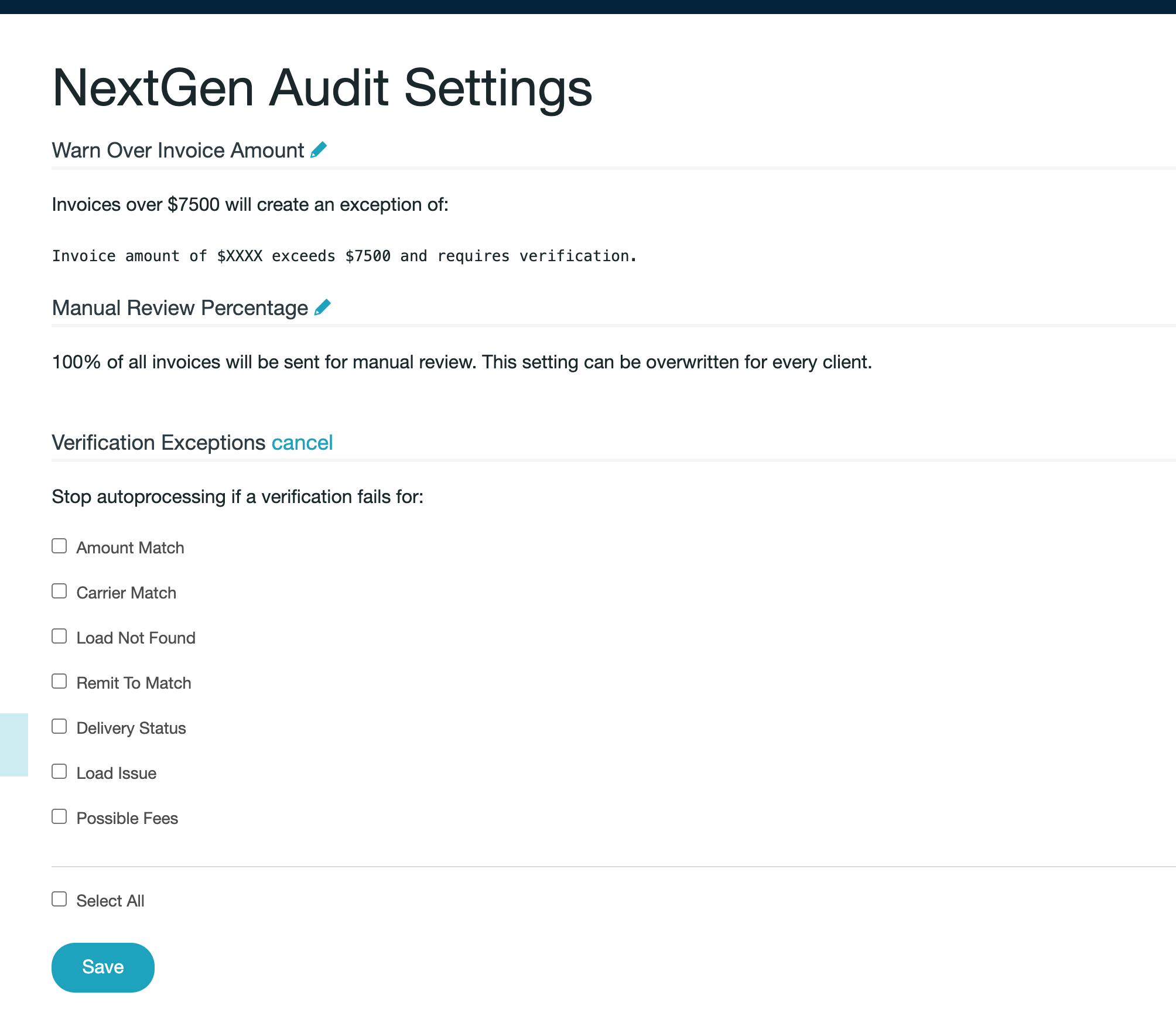
What it does
You can now control which verification failures should stop invoices from auto-processing. Instead of an all-or-nothing approach, you can select specific verification types that require manual review.
If a selected verification fails, the invoice is flagged with an exception and removed from auto-processing.
Processors can review the exception and either resolve it or choose to proceed. For accounts using the Verifications Workflow, exceptions can also be routed to the Verifications queue.
Available verification types
- Amount Match
- Carrier Match
- Load Not Found
- Remit To Match
- Delivery Status
- Load Issue
- Possible Fees
How to enable
- Go to Settings > NextGen Audit
- Click the edit (pencil) icon in the Verification Exceptions section
- Select the verification types you want to enforce
- Click Save
This feature is available to all accounts using NextGen Audit—no additional setup required.
2. Client-Specific Invoice Number Configuration
What it does
You can now customize invoice number settings at the client level, instead of applying a single rule across your entire account.
Two settings are available:
Invoice Number Strategy
Controls how invoice numbers are generated:
- Use Account Default
- Leave Blank
- Load ID
- Single Sequence
- Sequence Per Client
- Sequence Per Client with ID
Auto-Generate Invoice Numbers
Controls when invoice numbers are created:
- Use Account Default
- Always
- Never
- When Not Extracted
This gives you flexibility to tailor invoice numbering for different clients without impacting others.
How to enable
- Go to Settings > Clients
- Select a client
- Configure:
- Invoice Number Strategy
- Auto-Generate Invoice Numbers
No additional setup is required—this feature is automatically available.
3. Client Notes Configuration
You can customize how Client Notes appear in the sidebar by using the Client Notes Configuration section in Account Settings. This allows you to control which note types are visible, how they’re displayed, and the order they appear in.
What you can customize
For each note type — Warning, Funding Notes, and Notes — you can choose how it displays:
- Show Expanded: Section is visible and open by default
- Show Closed: Section is visible but collapsed
- Hide: Section is not shown in the sidebar
You can also drag and drop the sections to change their order. The sidebar will reflect your chosen layout immediately. Changes are saved automatically.
Default setup
If no changes are made, all three sections are:
- Shown expanded
- Displayed in this order: Warning, Funding Notes, Notes
Important notes
- The configuration options are only available when the Client Notes Sidebar is enabled (set to Collapsed or Expanded).
- If the sidebar is disabled, this configuration section will not appear.
- The sidebar’s header badge count only includes sections that are visible (not hidden).
How to access
- Go to Settings > Account
- Scroll below the Save button
- Locate the Client Notes Configuration section
To use this feature, make sure the Client Notes Sidebar Display Mode is set to Collapsed or Expanded.
4. Funding Instructions Exception
This feature helps ensure that important client instructions don’t get missed during auto-processing.
When enabled, the system checks invoices submitted through the client portal for any funding instructions or comments. If any are found, an exception is automatically created with the message “Funding instructions detected.” The invoice is then removed from auto-processing so it can be reviewed by a team member.
This helps prevent details like lumper fees, fuel advances, TONUs, or special payment instructions from being auto-approved without review.
Important notes
- Applies only to invoices submitted through the client portal (not email or other submission methods)
- The exception can be ignored or skipped, allowing processing to continue if appropriate
- The feature is turned off by default and will not affect processing until enabled
How to enable
Please reach out to your customer success manager or Triumph support to enable this feature.
Once enabled, invoices with client-provided notes will automatically be flagged for review.
Was this article helpful?
That’s Great!
Thank you for your feedback
Sorry! We couldn't be helpful
Thank you for your feedback
Feedback sent
We appreciate your effort and will try to fix the article