Triumph Audit
Product: Triumph Audit
Audience: Audit Broker Customers
Automation Insights is now live in Triumph Audit's Insights Dashboard. AI-powered recommendations help your team identify custom rules and invoice tolerances that create repeat exceptions. Authorized users can remove outdated rules and update tolerances directly from the dashboard. Your team reviews and confirms every change.
What's New
Custom Exception Message
See which custom exception rules create the most manual work and remove the ones you no longer need directly from the Insights Dashboard.
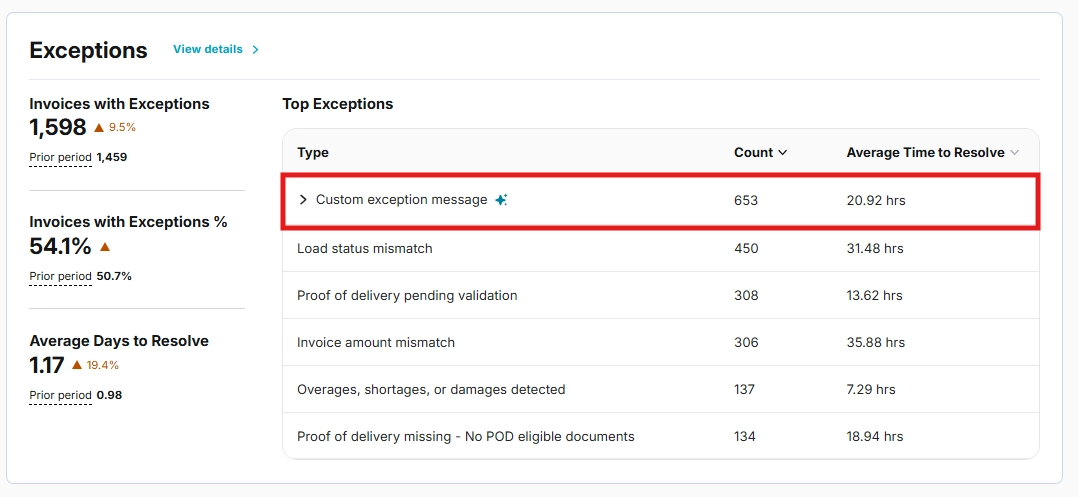
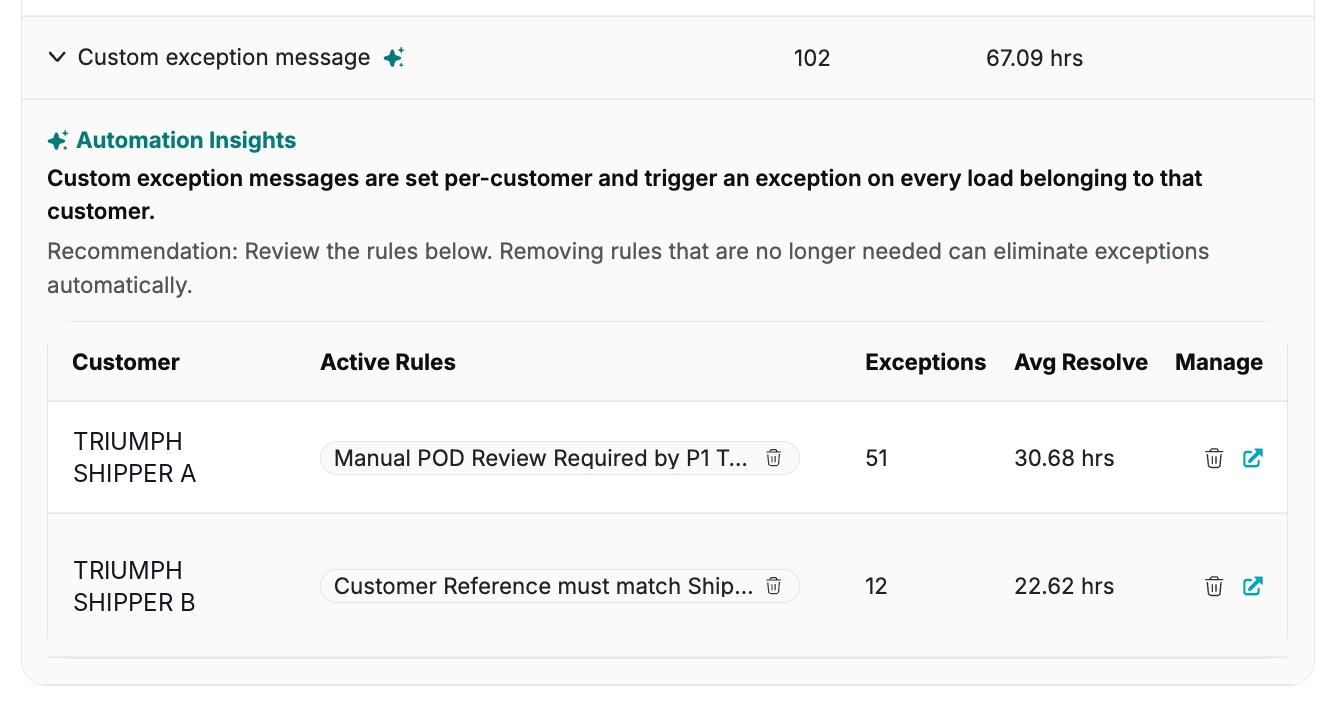
In Insights Dashboard > Top Exceptions, expand Custom Exception Message to see rules grouped by customer or account, with exception counts and average resolution time. Users with both Settings and Admin permissions can remove or modify rules from this view. A confirmation dialog names the exact rule and account before you confirm.
Each rule also links to the relevant customer-level or account-level settings page if you prefer to manage changes there.
What this enables:
- See which rules create the most manual exception work
- Remove outdated rules without exporting reports or submitting a support ticket
- Stop removed rules from creating repeat exceptions
- Let more invoices continue through auto-processing
Note: "Custom Exception Message" replaces "Invoice Reminder Exception" across Insights, Audit queues, and Account Settings. No action is required.
Invoice Amount Mismatch Recommendations
Automation Insights uses your team's approval history from the last 30 days to generate AI-powered dollar tolerance recommendations for invoice amount mismatches.
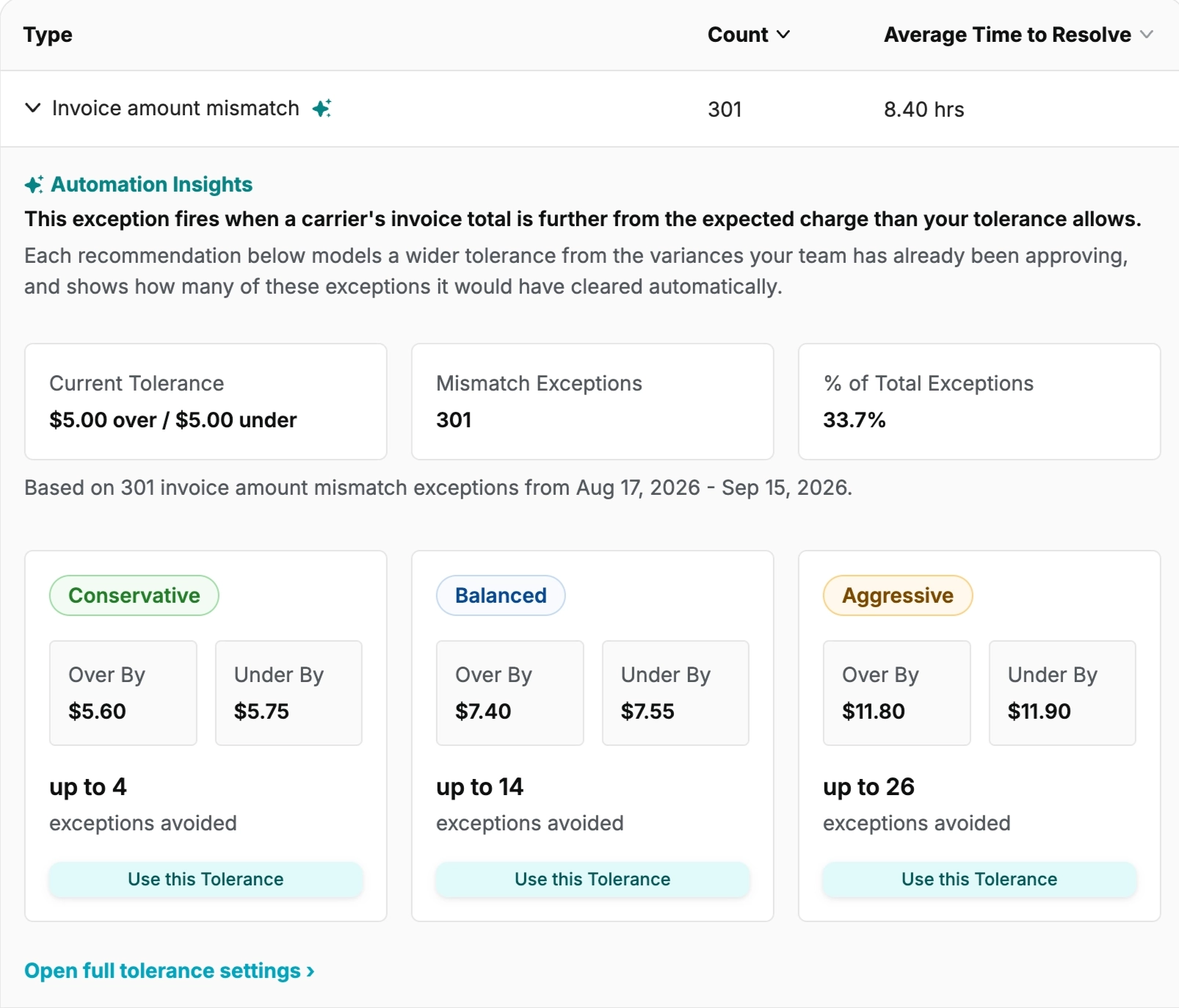
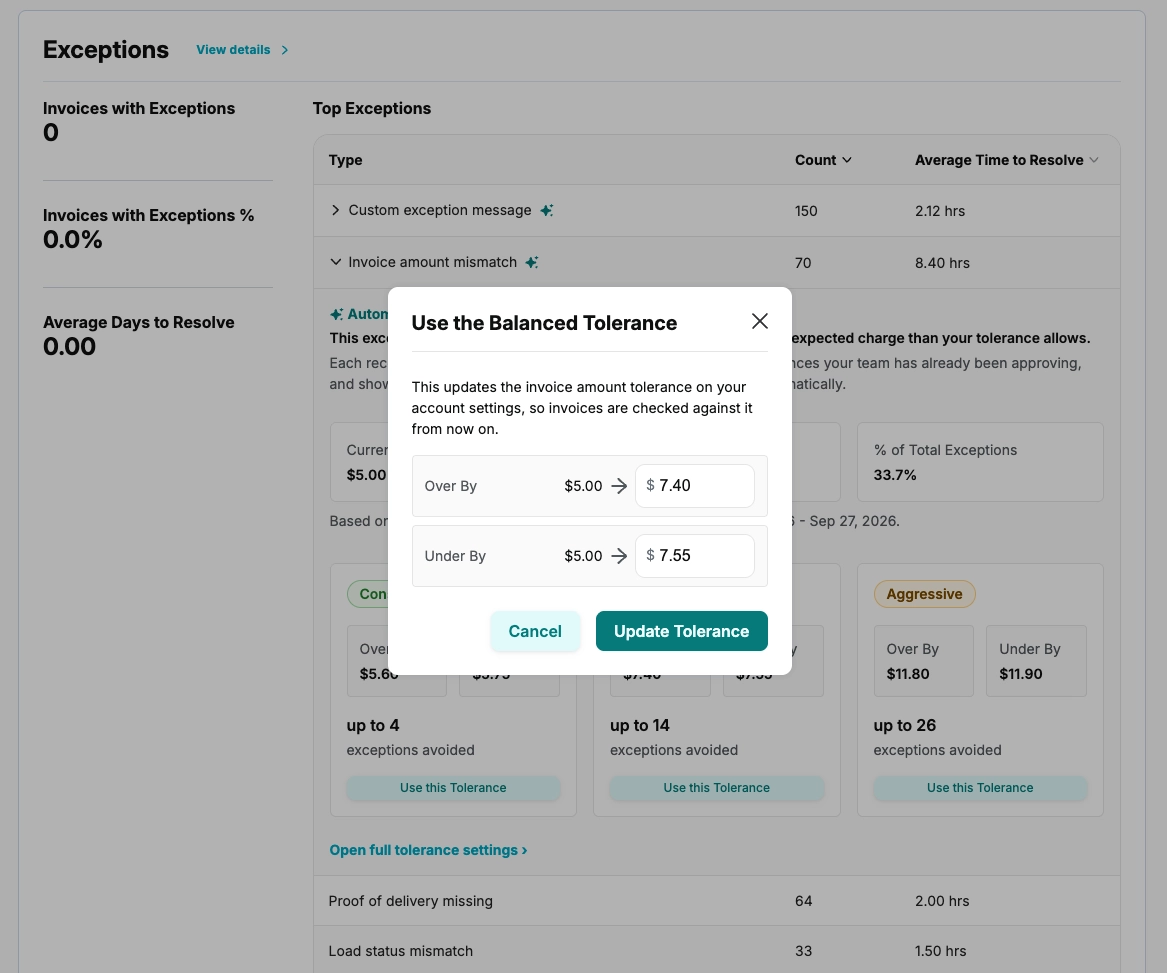
Compare three tolerance tiers. Each shows historical exception counts: how many exceptions would have resolved automatically if that tolerance had been applied. Review or edit the suggested amount before confirming. Recommendations refresh daily as your approval patterns change.
What this enables:
- Set tolerances based on differences your team has approved
- Reduce small, repetitive amount-mismatch exceptions
- Focus review time on exceptions that need judgment
- Let invoices within the updated tolerance continue through auto-processing
Eligibility requirements for Invoice Amount Mismatch recommendations:
- Your account must have dollar tolerance enabled and must not use a percentage tolerance
- Your account must have enough approved differences within the last 30 days
If dollar tolerance isn't enabled, contact your Customer Success Manager for setup. Once enabled, it stays on and starts at $0; no manual activation is needed. With percentage tolerance, you'll see exception counts only and the row won't expand. If there hasn't been a run in the last seven days, you'll see that no recommendation is available. The dashboard also explains when there isn't enough approval data, recent approvals don't support a wider tolerance, or your current tolerance covers every recommendation from the latest run. Recommendations refresh daily.
Governance and Access
Your team decides what changes. Automation Insights doesn't update settings automatically. An authorized user must confirm each rule removal or tolerance update.
- Viewing insights: Broker users with Insights Dashboard access can explore the insights available to their account. Access is controlled by the "Insights Dashboard Access" user setting, which anyone with Admin permission can grant by editing the user under Settings > Users
- Applying changes: The Settings permission is required to apply a tolerance; both Settings and Admin permissions are required to remove or modify Custom Exception Messages
If you can't apply a change yourself, share the recommendation with an authorized user on your team.
Getting Started
- Go to Insights Dashboard > Top Exceptions.
- Expand Custom Exception Message to review rules by exception count and average resolution time. If you have both Settings and Admin permissions, remove rules you no longer need or open the relevant settings page to adjust them.
- Expand Invoice Amount Mismatch to compare tolerance tiers and historical exception counts. Review or edit the suggested amount. If you have the Settings permission, confirm the tolerance that fits your team's needs.
- Check back regularly. Recommendations refresh daily as your approval patterns change.
Access: Automation Insights is available to brokers with Insights Dashboard access. Access is controlled by the "Insights Dashboard Access" user setting; anyone with Admin permission can grant it by editing the user under Settings > Users. The insights available to your account depend on its settings and approval history. Applying a tolerance requires the Settings permission; removing or modifying Custom Exception Messages requires both Settings and Admin permissions.
Need a guided walkthrough? Your Customer Success Manager can clarify who can view insights and apply changes, review your account's results, and help identify rules to address.
Was this article helpful?
That’s Great!
Thank you for your feedback
Sorry! We couldn't be helpful
Thank you for your feedback
Feedback sent
We appreciate your effort and will try to fix the article